DNS tools and Wireshark inspection
Use DNS commands deliberately and learn how to inspect a query and response in Wireshark.
- Choose a DNS command for the observation you need.
- Locate a controlled DNS query and response in the real Wireshark interface.
- DNS
- Command
- Packet
- Network interface
On this page
Choose the command for the question
| Environment | Command | Best first observation |
|---|---|---|
| Windows CMD | nslookup example.test | Resolver used and returned answer |
| Windows CMD | ipconfig /displaydns | Windows DNS client cache |
| Windows CMD | ipconfig /flushdns | Clear that local client cache |
| PowerShell | Resolve-DnsName example.test -Type A | Typed DNS result as objects |
| PowerShell | Get-DnsClientCache | Local cache entries |
| PowerShell | Clear-DnsClientCache | Clear the local cache; success has no output |
| Linux/BIND tools | dig example.test A | Header and DNS message sections |
| Linux/BIND tools | host -t AAAA example.test | Compact typed lookup |
In the simulator, these forms operate only on controlled virtual state. The values use reserved documentation namespaces and ranges.
What Wireshark is
Wireshark is a protocol analyzer. A packet capture is a recorded set of packets observed at a selected capture interface. It is not a complete record of every packet in the network: placement, interface choice, capture settings, encryption and packet loss all affect what you can see.
The current Wireshark User's Guide describes three main packet views:
- Packet list — one summary row per captured packet.
- Packet details — decoded protocol fields for the selected packet.
- Packet bytes — the captured bytes corresponding to the selected data.
Capture filter is not display filter
A capture filter limits which packets are recorded. A display filter selects which already captured packets are shown. For a capture that already exists, dns is a Wireshark display filter for decoded DNS protocol traffic. Do not paste capture-filter syntax into the display-filter bar and assume it is equivalent.
Inspect a DNS exchange
- Select the correct capture interface before capture.
- Generate one deliberate DNS lookup.
- Stop the capture so the evidence set stops changing.
- Apply the display filter
dns. - Select the query and expand its DNS details: transaction ID, flags, question name and query type.
- Select the matching response and compare transaction ID, response flag, answer type, value and TTL.
- Keep transport details separate from DNS meaning. A packet may use UDP or TCP; the DNS fields still describe the question and answer.
See the real interface
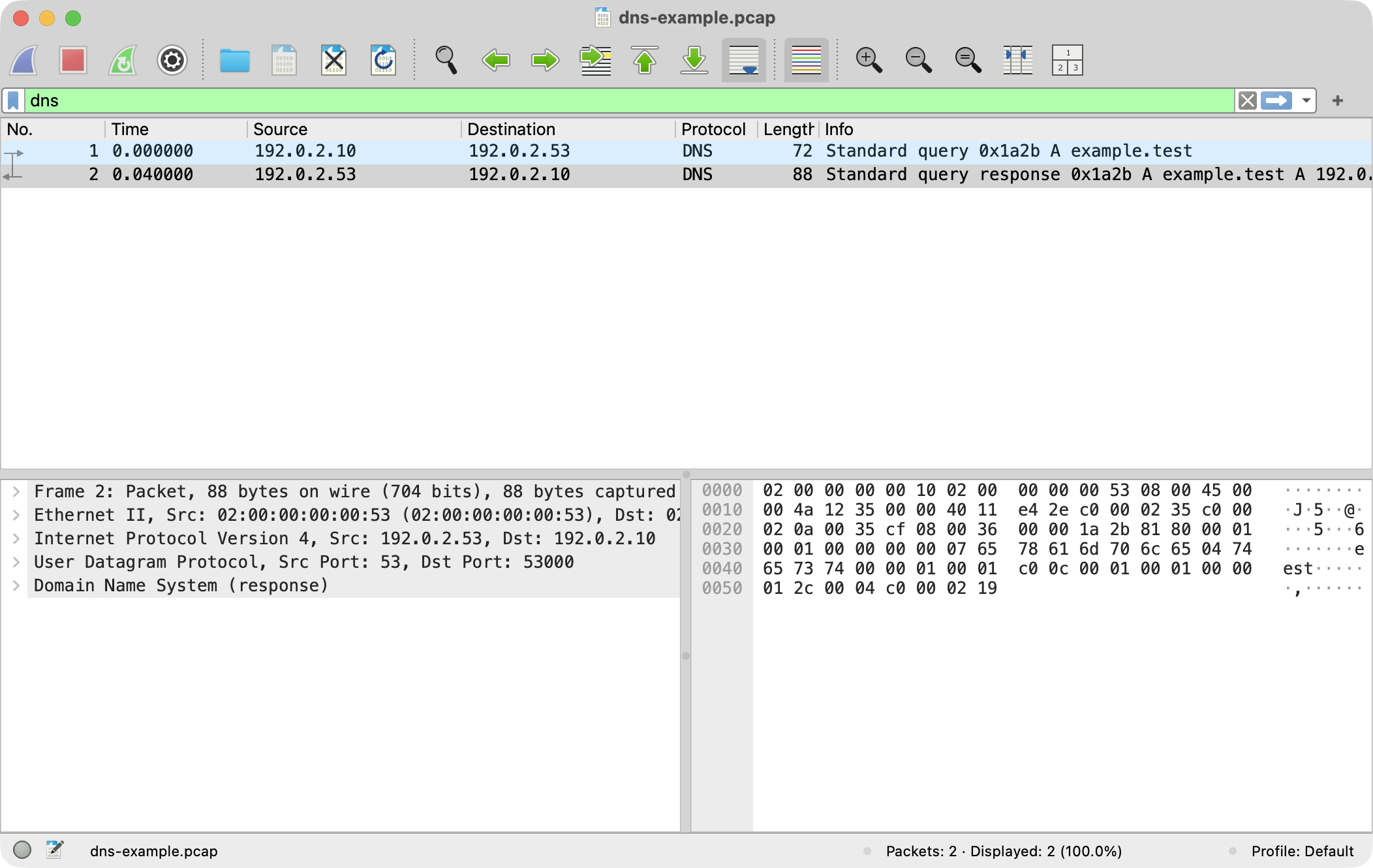
- 1Display filter: dns
- 2Packet list: query and response
- 3Packet details: decoded fields
- 4Packet bytes: captured data
Real Wireshark 4.6.8 screenshot on macOS. The trace uses reserved documentation addresses and no production traffic.
The screenshot is evidence of the actual software interface in Wireshark 4.6.8 on macOS. The numbered explanations are localized HTML, so the raster is not altered or mistaken for a generated UI. Select the query row to inspect the question; select the response row to inspect the answer and TTL.
Next stepDiagnose before you flushSeparate resolver, cache, answer, transport and application failures.